


7 Best Free MP4 Converter: Software, Online & Extensions
Nowadays, more and more people are looking for a free MP4 converter because most portable media players support the MP4 format. However, do you know how to convert videos to MP4 for free, safely, and quickly? This article will introduce the 7 best MP4 converters available to date, covering computer software, online converters, and Google Chrome extensions, and guide you on how to convert videos to MP4 for free.
Method 1: The Safest MP4 Converter on PC
Any Video Converter
Although installing computer software is a bit troublesome, using a computer program to convert videos to MP4 is the safest method. Verified by millions of users over many years, Any Video Converter stands out among numerous MP4 conversion programs.
With Any Video Converter, you can easily convert videos to MP4. Whether converting online video URLs from 1000+ websites or MOV, AVI, MKV, WebM, and more local files, it can efficiently process and losslessly convert them to MP4.
Free, with no restrictions and no annoying bundled ads, this perfectly meets your needs for a pure conversion task. Intuitive interface, simple conversion steps, and 130x faster conversion speed satisfy your ultimate pursuit of "ease of use" and "time saving". Before conversion, you can also freely choose the output video resolution (720P, 1080P, 4K, or even 8K) and bitrate, flexibly controlling file size and MP4 video quality.
✅ The official Any Video Converter installation package is 100% safe, and the installation process is simple, taking less than 1 minute to complete on your PC.

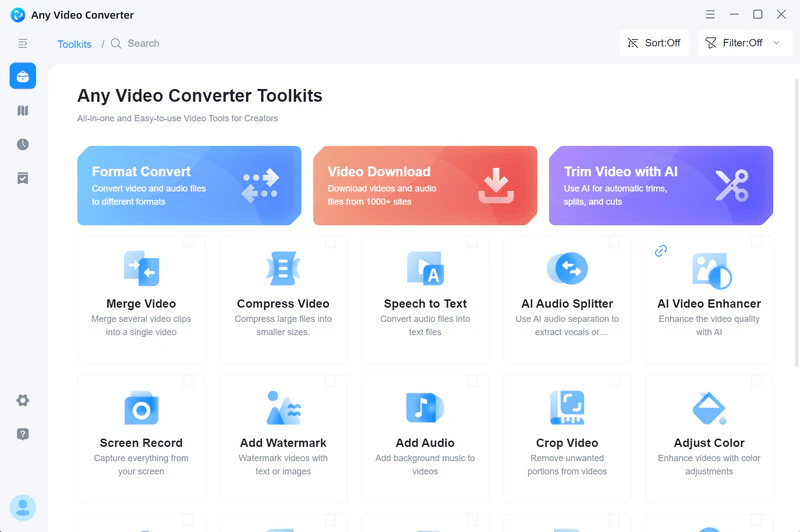
How to Convert Local Videos to MP4 Using Any Video Converter
Add Videos to Any Video Converter
Navigate to "Format Convert" and simply click the "Add Media File(s)" button to import the video files from your hard drive. Batch video conversions are supported.
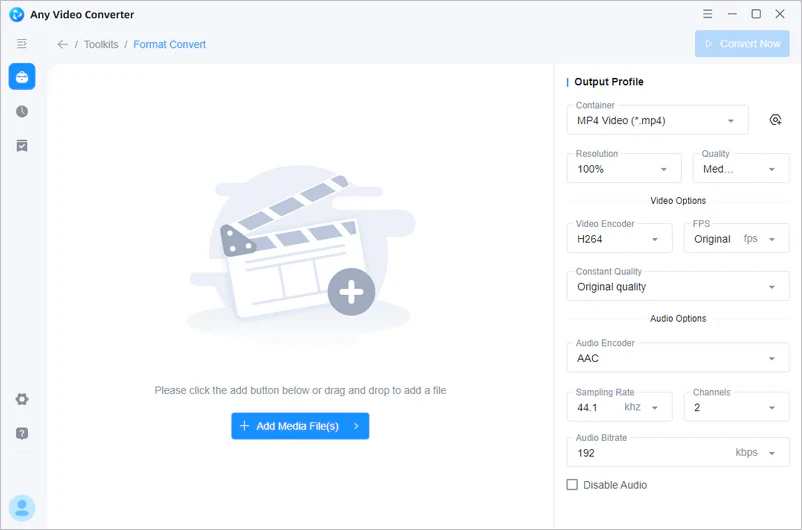
Select the Output Profile
Choose "MP4 Video (*.mp4)" as an output format. You can also customize the output MP4 video resolution, quality, encoder, and more. Generally, MP4 H.264 offers the highest compatibility.
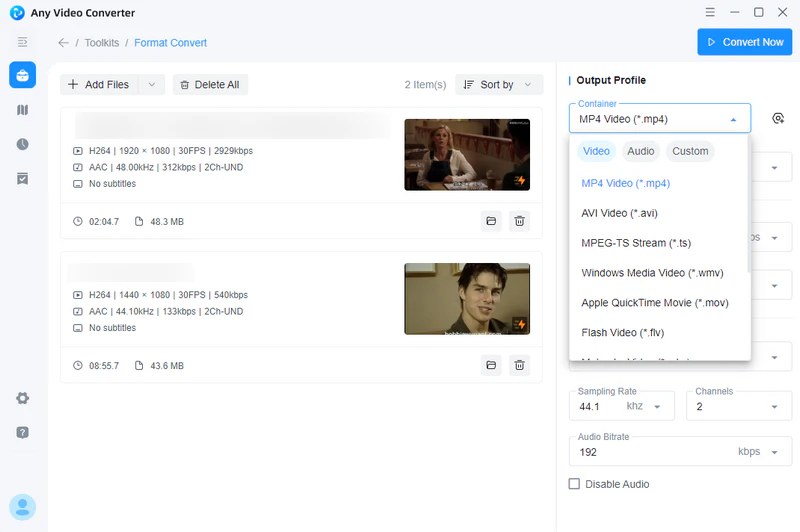
Convert Video to MP4
Click the "Convert Now" button to start converting videos to MP4. Once the conversion is finished, you can click " " to get the output MP4 files.

Any Video Converter supports downloading and converting YouTube and 1000+ website URLs to MP4. Here is the tutorial: /online_help/download-video.html
Method 2: Free Online MP4 Converters
If you still don't want to install programs, a free online MP4 converter is an alternative. However, free online MP4 converters are definitely not as safe as Any Video Converter. For short, small-batch video conversions to MP4, you can use the following three online MP4 converters.
1. CloudConvert
CloudConvert is a fully cloud-based online MP4 converter. It supports Windows, Mac, Linux, and mobile browsers, requires no installation, and consumes no local system resources. It has no specific computer configuration requirements and is especially suitable for processing large video files on older devices or computers with insufficient performance.
 Cons:
Cons:
- 10 conversions per day for free
- Unable to convert URLs to MP4
- MP4 conversion relies on network
- Batch conversion requires processing one by one
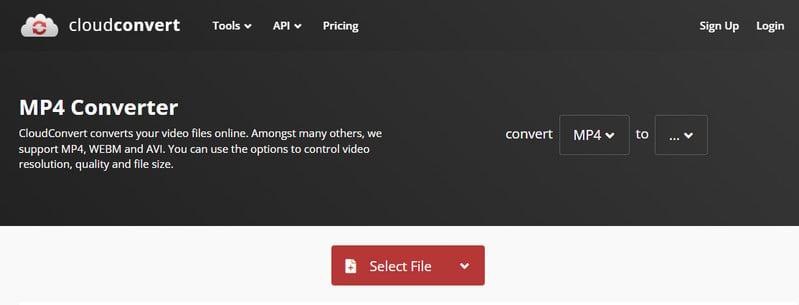
How to Convert Video to MP4 Using CloudConvert
Step 1: Click to open CloudConvert.
Step 2: Click "Select File" to upload video files from your local computer and choose the MP4 format.
Step 3: Before you start converting video to MP4, CloudConvert allows you to customize the MP4 video encoder, resolution, audio, video trimming, and more. Among online MP4 converters, CloudConvert offers more customization options than others.
Step 4: Click the red "Convert" button to start converting video to MP4.
2. Convertio
Like CloudConvert, Convertio also converts files via the cloud. It supports conversion between over 100 file formats, including documents, images, audio, video, ebooks, and more. You can quickly convert MP4 files using simple drag-and-drop operations or by uploading files, without installing any software; it's all done in your browser.
Cons:
- Unable to convert files larger than 100 MB
- Only two files can be converted at the same time
- Video URL conversion is not supported
- During peak hours, you may need to queue and wait for the conversion
- Bundled ads
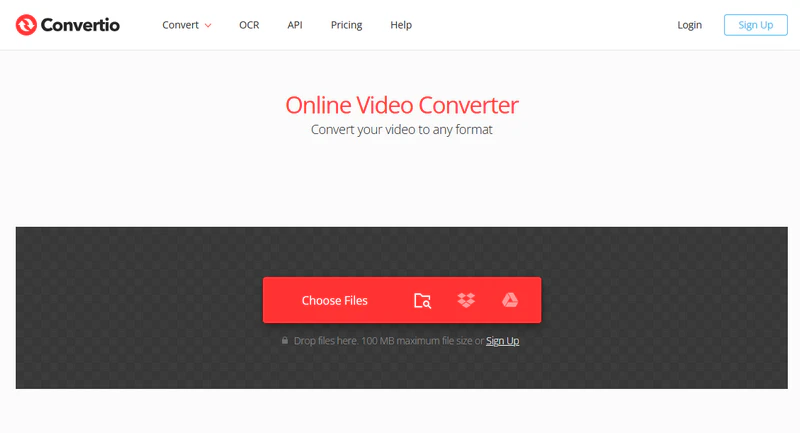
How to Convert Video to MP4 Using Convertio
Step 1: Visit the Convertio official website.
Step 2: Click "Choose Files" in the center and select the video you want to convert from your local folder.
Step 3: After uploading your video file, select "MP4" and adjust the settings (codec, size, quality).
Step 4: Start converting the video to MP4. Once the conversion is complete, click "Download" to save the MP4 file to your local computer.
No. Convertio can only convert YouTube videos downloaded to your local computer.
3. 9xbuddy
9xbuddy is a popular online video downloader and converter. Unlike CloudConvert and Convertio, it allows you to directly paste video URLs and offers the option to download as MP4. Its key feature is a one-step "parse - convert MP4" process, which is free and convenient.
Cons:
- Unable to convert local files
- Low-quality MP4 video output
- Unable to convert in batches
- No customization options
- Bundled ads
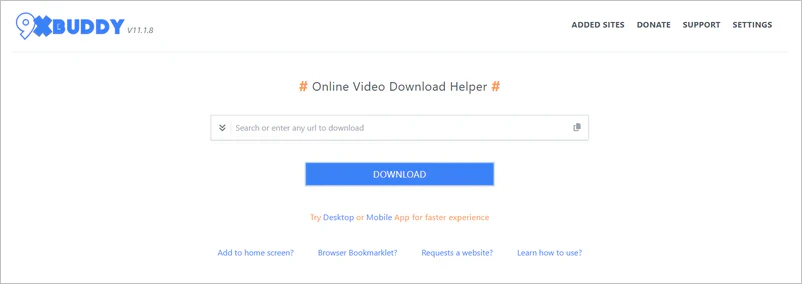
How to Convert Video to MP4 Using 9xbuddy
Step 1: Open your browser and visit the official website of 9xbuddy.
Step 2: Paste the copied video URL into the input box.
Step 3: Click the blue "Download" button, and 9xbuddy will begin parsing the video URL and retrieving the video information.
Step 4: Select MP4 from the listed options and begin downloading the video URL as MP4.
Yes. Simply paste the YouTube video URL to download the YouTube video as MP4. However, 9xbuddy can only output 360P MP4 video.
Method 3: Google Chrome Extensions for MP4 Conversion
Did you know that Google Chrome extensions can also convert videos to MP4? With just one click, it's integrated directly into Google Chrome, allowing you to download videos from the current page without switching software. Converting online videos to MP4 is a basic function of Google Chrome extensions.
1. Video DownloadHelper
When browsing videos on a webpage, Video DownloadHelper automatically detects online videos and supports MP4 output, with download quality up to 1080P. The output MP4 video will be saved in the browser.
Cons:
- Only videos from some websites can be downloaded
- Only download function
- Can only be used in Google Chrome
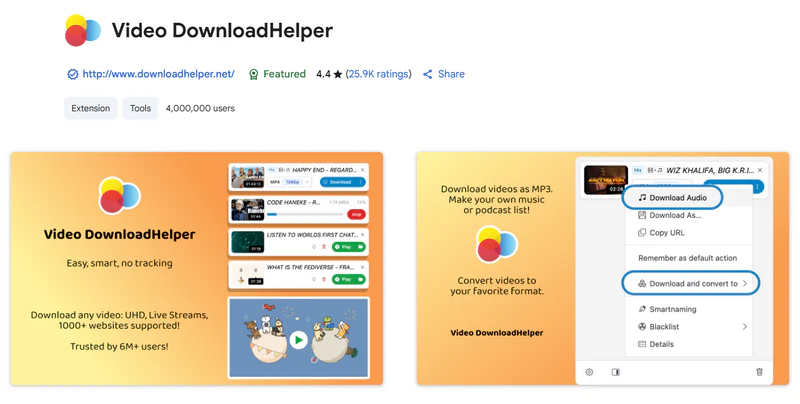
 How to Convert Video to MP4 Using Video DownloadHelper >>
2. Video Downloader Unlimited
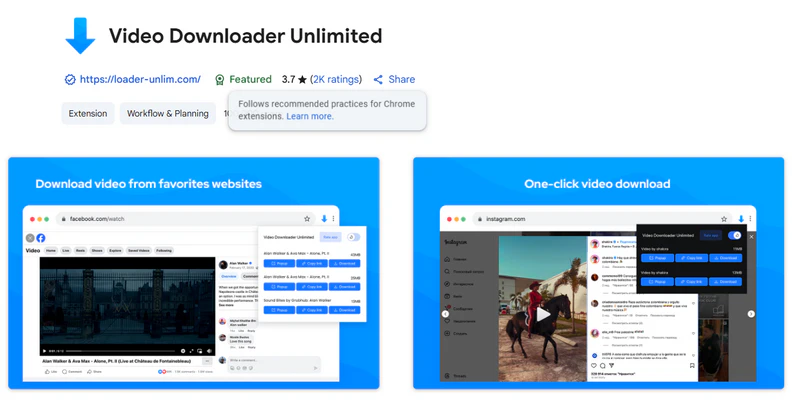
Video Downloader Unlimited allows you to download videos in all known formats: mp4, webm, mpeg, ogg, etc. This extension also supports downloading HTTP Live Streaming (HLS) videos. The videos will be saved to your computer, and you can then watch them using any media player.
Cons:
- Only save 240P MP4 videos
- Unable to batch convert videos to MP4
- Supported websites are limited
How to Convert Video to MP4 Using Video Downloader Unlimited >>
3. Bulk Media Downloader
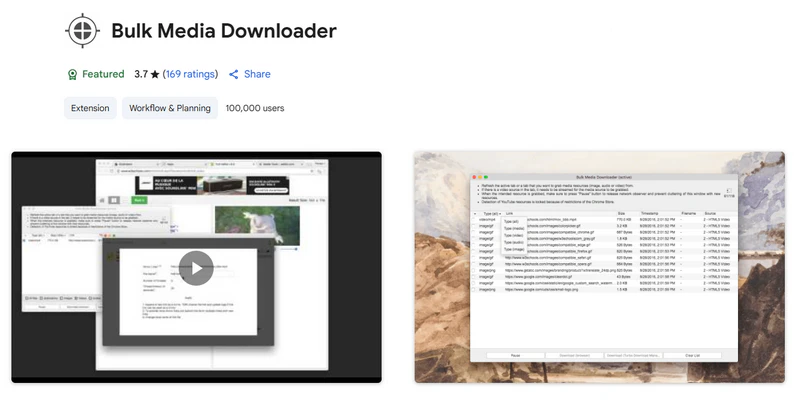
The "Bulk Media Downloader" extension is actually a downloader that can collect various media file resources (images, audio, and video) and allow you to download them in bulk using your browser's default download manager or a custom download manager.
Cons:
- Only save 240P MP4 videos
- It takes time to grab MP4 videos
- It's difficult to identify which video you need to download
How to Convert Video to MP4 Using Bulk Media Downloader >>
FAQ About MP4 Converter
Q1: Is it legal to convert YouTube videos to MP4?
Videos on YouTube are generally protected by copyright. Copying, downloading, adapting, or distributing copyrighted content without the copyright holder's permission may constitute copyright infringement.
Converting legally obtained YouTube videos to MP4 is relatively safe if you are only doing it for personal study, research, or enjoyment.
Q2: What is the best MP4 converter to use?
The best MP4 video converter recommended is Any Video Converter. It supports efficient conversion of almost all mainstream video formats (MKV, AVI, MOV, WMV, etc.) to MP4 format and also supports downloading and converting videos from online platforms to MP4.
Key Features of Any Video Converter
- Free conversion, no restrictions, no viruses
- Support 1000+ output/input formats
- Convert local files and online videos
- Hardware acceleration reaches 130x faster speed
- Quality options are available (resolution, bitrate, file size, etc.)

Q3: Do MP4 files lose quality?
Video quality depends primarily on the encoding format.
Most MP4 videos use the H.264 encoding format, which results in a slight loss of video quality. If you want lossless MP4 videos, you can use the AV1 encoding format.
Q4: Can you download and convert DRM videos?
DRM is a technology used to protect the copyright of digital content. Unauthorized downloading, decryption, or conversion of DRM-protected content constitutes copyright infringement.
Final Thoughts
In general, computer software, online converters, and browser extensions can all convert videos to MP4.
However, if you're looking for a safe, efficient, versatile, clean, and completely free conversion experience, Any Video Converter is undoubtedly the best. Whether converting various local video files or directly downloading and converting online videos from websites like YouTube to MP4, Any Video Converter handles it all with ease, offering rich customization options for resolution, quality, encoder, and more, balancing conversion speed and quality. It truly provides you with a clean, professional, one-stop video conversion solution.


Besty Smith | Content Writer
Besty Smith is a talented and insightful content creator with a keen interest and passion for software programs. She focuses on in-depth research and hands-on experience with various types of software, providing readers with in-depth and inspiring content through precise writing. With her keen insight into the software industry, Besty is committed to helping readers keep abreast of the latest industry trends so that they can stay competitive in the digital age.