What Is Auto Download in Any Video Converter
Any Video Converter Ultimate adds an Auto Download feature that lets you monitor YouTube channels and playlists or TVer programs. After you create a task, the program checks the monitored URL periodically and automatically adds newly uploaded or newly available videos to the download queue.
Note: The first check establishes a baseline and does not download videos that were already available when the task was created. Only content detected after the task is created will be downloaded automatically.
Follow the steps below to create and manage an Auto Download task.


How to Create and Manage Auto Download Tasks
Step 1 Open Auto Download
Open the Video Download tool in Any Video Converter. Hover over the Add URLs button, and then click  to open the Create Auto Download Task window.
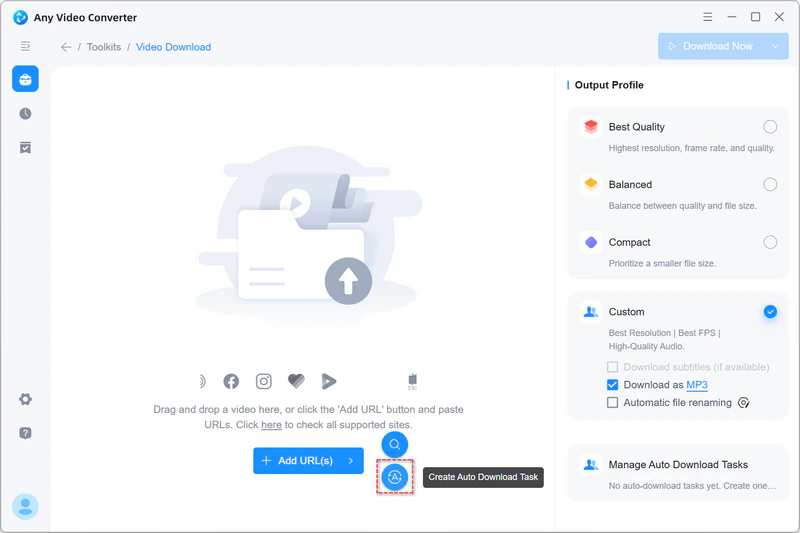
Step 2 Add a URL and create a task
Paste a YouTube channel or playlist URL, or a TVer program URL, into the URL field.
Tip: For more reliable parsing and downloading, you can also sign in to the corresponding website before adding the URL.
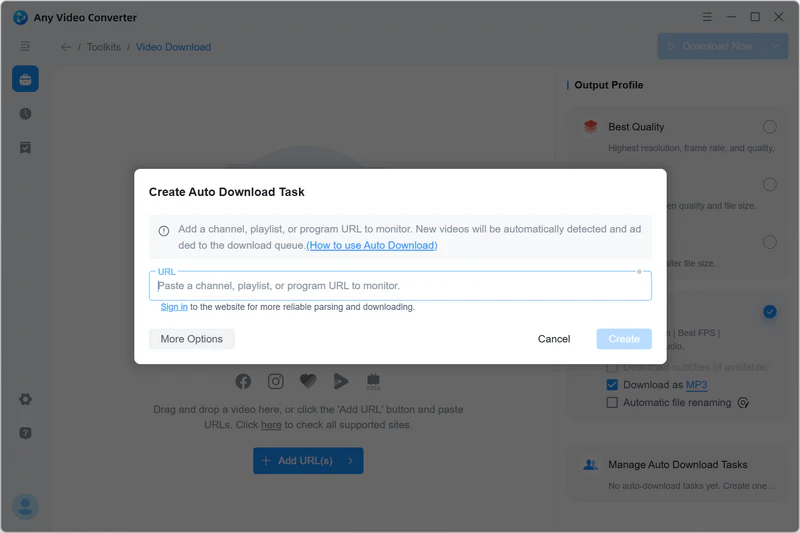
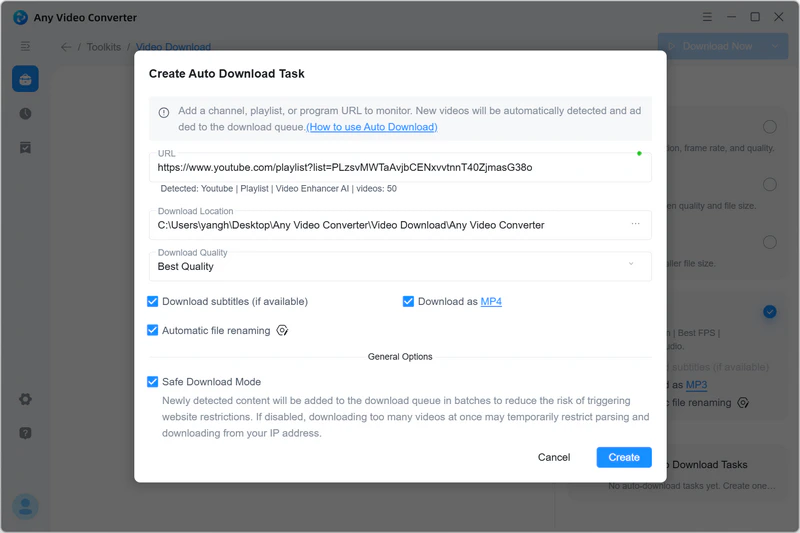
To use the default settings, click Create. To customize the task, click More Options and adjust the download location, download quality, output format, subtitle option, automatic file renaming, and Safe Download Mode.
⭐ Safe Download Mode is highly recommended. Disabling it may temporarily restrict parsing or downloading from your IP address.
When you have finished configuring the task, click Create.
Step 3 Manage Auto Download Tasks
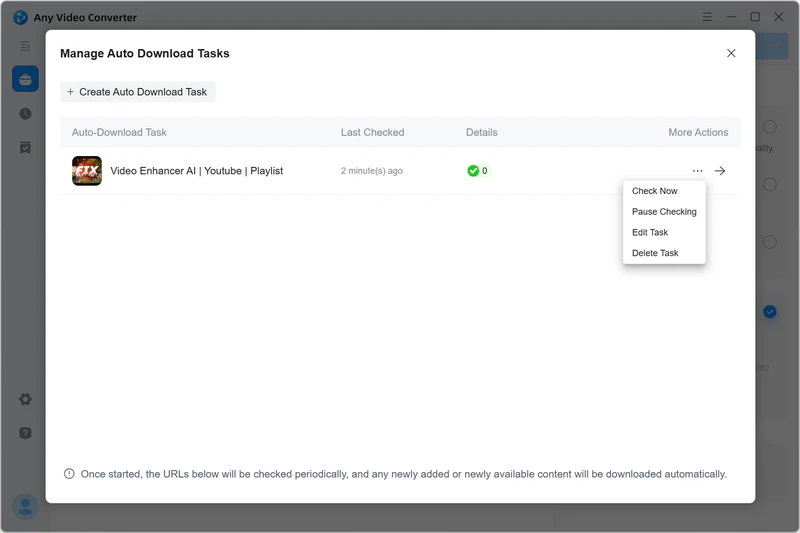
After creating a task, click Manage Auto Download Tasks to view and manage your monitored URLs.
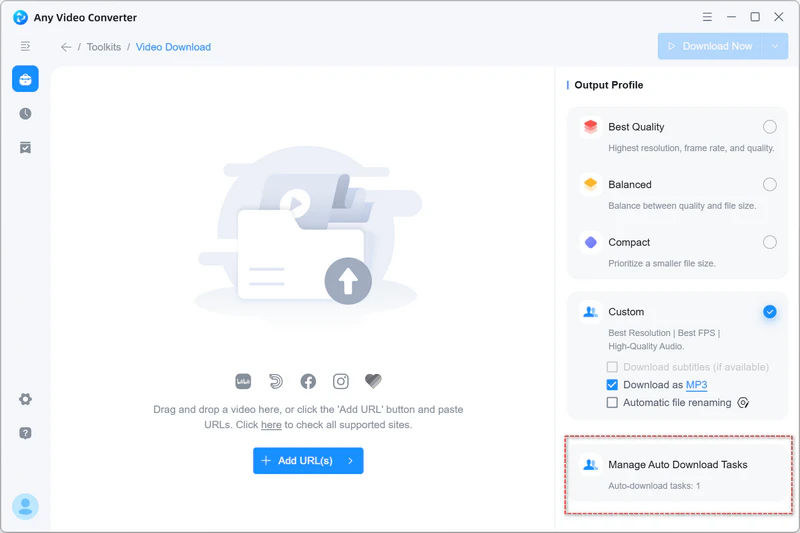
To add another monitored URL, click Create Auto Download Task at the top of the window.
Click the More Actions menu next to a task to:
- Check Now: Check the monitored URL for new videos immediately.
- Pause Checking: Stop periodic checks for this task.
- Edit Task: Change the task's download settings.
- Delete Task: Delete the Auto Download task.