Part 1: How We Tested Free Video Compression Software
We created a consistent testing environment so every free video compression software was evaluated under the same conditions.
- Operating System: Windows 11 64-bit
- Processor: Intel(R) Core(TM) i3-14100 (3.50 GHz)
- Memory: 16 GB RAM
- Test Video Files:
Sample 1: a 8K short YouTube video (WEBM, AV1 encoding, 20.4MB, 30FPS, 16 sec)
Sample 2: a 2K social media video (WEBM, AV1 encoding, 527MB, 60FPS, 5 min 13 sec)
Sample 3: a 4K iPhone video (MOV, HEVC encoding, 94.4MB, 60FPS, 44 sec)
- Testing Methodology: Whenever possible, we exported videos as MP4 using the H.264 codec. This format is widely supported and works well for email, Discord, YouTube, cloud storage, and most social media platforms.
We aimed for a similar compression level across all tools. Since HandBrake, VLC Media Player, and CapCut don't offer a direct compression ratio option, we manually adjusted settings such as bitrate, resolution, and quality to produce similar file sizes while keeping video quality as possible.
Part 2: 10 Best Free Video Compression Software in 2026
| Video Compression Software |
Compressed Size
Video 1/ 2/ 3 |
Compression Time
Video 1/ 2/ 3 |
Reduction Rate |
| 🥇 Any Video Converter |
👍 8.8MB / 292MB / 51.4MB |
👍 5s / 1'30s / 40s |
≈ 51% |
| 🥈HandBrake |
14.9MB / 188MB / 19.8MB |
16s / 3'30s / 55s |
≈ 57% |
| 🥉VLC Media Player |
25.1MB / 219MB / 12.9MB |
16s / 5'14s / 45s |
≈ 57% |
| CapCut |
10.1MB / 248MB / 34.9MB |
4s / 1'45s / 4s |
≈ 56% |
| VideoProc Converter AI |
13.4MB / 242MB / 1.08MB |
5s / 6'5s / 2'30s |
≈ 62% |
| Winxvideo AI |
9.9MB / 296MB / 55.4MB |
16s / 8'19s / 2'51 |
≈ 46% |
| FreeConvert Video Compressor |
11.8MB / 301MB / 54.1MB |
1'52s / 12'10s / 4'42s |
≈ 43% |
| OnlineConverter.com |
8.65 MB / error / 36.1MB |
3'12s / error / 12s |
≈ 60% |
| VEED |
9.19MB / 201MB / 6.59MB |
30s / 10'19s / 5'40s |
≈ 70% |
| Clideo |
13.45MB / error / 3.45MB |
> 30 min / error / 5'11s |
≈ 85% |
2.1. Any Video Converter - Best Overall Free Video Compression Software
Why We Recommend It Flexible compression strategies to maintain frame rate, resolution, or video quality while reducing file size.
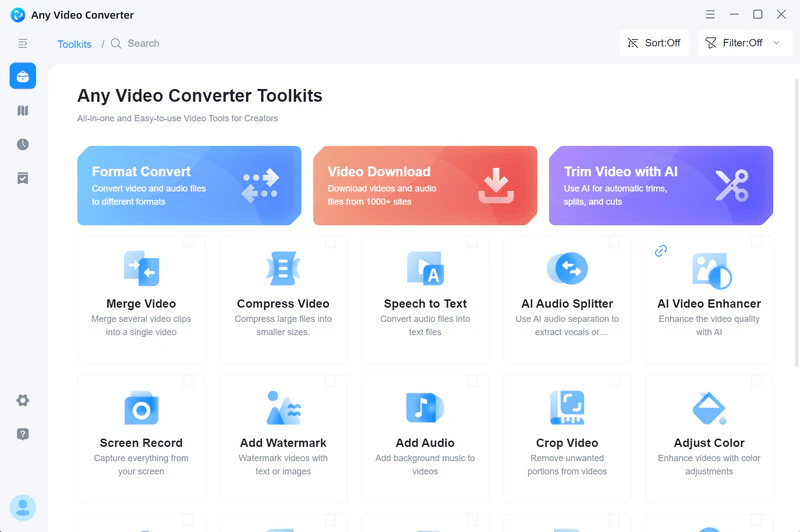
Any Video Converter is one of the best free video compression software options for Windows and Mac. Besides converting videos, it also works as a free video compressor for reducing large MP4, MOV, and other video files. It combines video compression, conversion, downloading, and basic editing in one program, allowing you to process videos without switching between multiple applications.
For online videos, users can choose the 'Compact' download option to save smaller files directly. For local videos, advanced users can customize codec, frame rate, and bitrate settings, while beginners can use the dedicated 'Compress Video' tool with smart compression strategies.
Any Video Converter offers a flexible and efficient way to reduce video size, whether you need to compress downloaded videos, optimize local MP4 files, or prepare videos for sharing online.
Our Testing Experience:
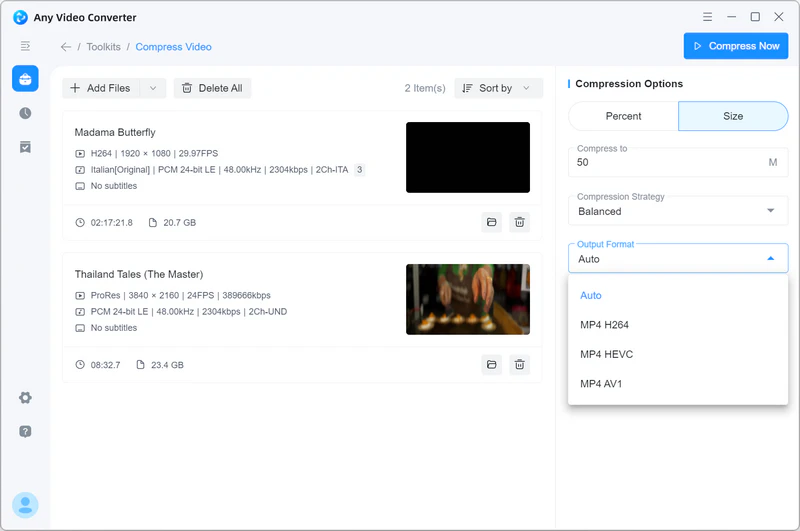
We used the 'Compress Video' tool, compressed 3 files to 60% with 'Balanced' compression strategy and MP4 H264 output format. The 8K video was reduced from 20.4MB to 8.8MB, making it suitable for sharing through email and Discord. The 2K social media video and 4K iPhone footage also maintained important details, including object edges and background textures, after compression.
- Best For: Content creators and everyday users who need an all-in-one tool to download, convert, and compress videos efficiently.
✔️ All-in-one video processing and compression workflow
✔️ Flexible and smart video compression strategies
✔️ High-quality and batch video compression for free
✔️ Optional compression ratios and customizable size
|
|
|
❌ Only MP4 output after compression
|
|
2.2. HandBrake - Open-Source Video Compression Software
Why We Recommend It A free, open-source video compressor with advanced encoding controls and efficient file size reduction.
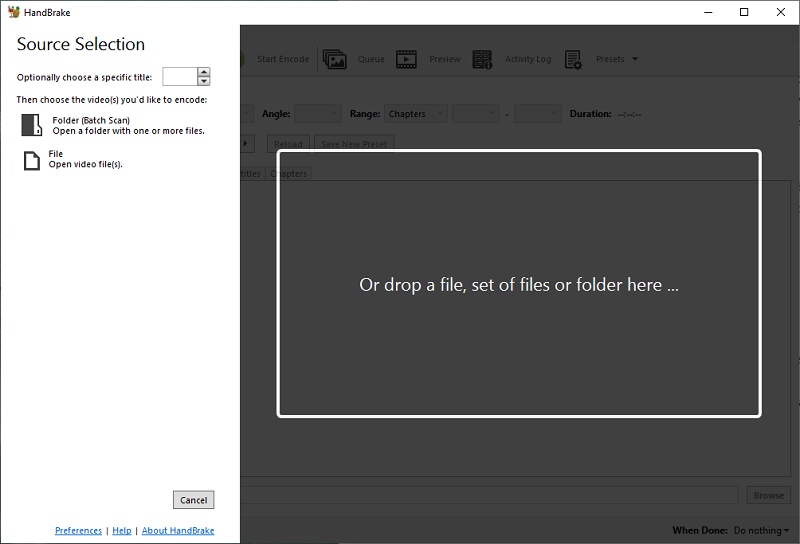
HandBrake is a free, open-source video compression software for Windows, Mac, and Linux. Instead of using a one-click compression approach, it focuses on detailed encoding control, allowing you to fine-tune settings such as codec, constant quality, bitrate, frame rate, and resolution. That's why HandBrake may feel less beginner-friendly. You need a basic understanding of encoding settings to achieve the best balance between video quality and file size.
Our Testing Experience:
We manually adjusted bitrate, encoder, and quality settings to reach a similar compression ratio. HandBrake delivered excellent compression efficiency but required multiple rounds of tuning, making it better suited to experienced users.
- Best For: Technical users, especially those on Linux, who need precise control over video compression settings.
✔️ Free, open-source, no limits on video compression
✔️ Advanced compression controls & excellent codec support
|
|
❌ Less beginner-friendly
❌ No built-in video editing workflow
|
|
2.3. VLC Media Player - Basic Video Transcoding and Compression
Why We Recommend It It can serve as both a video player and a video transcoder.
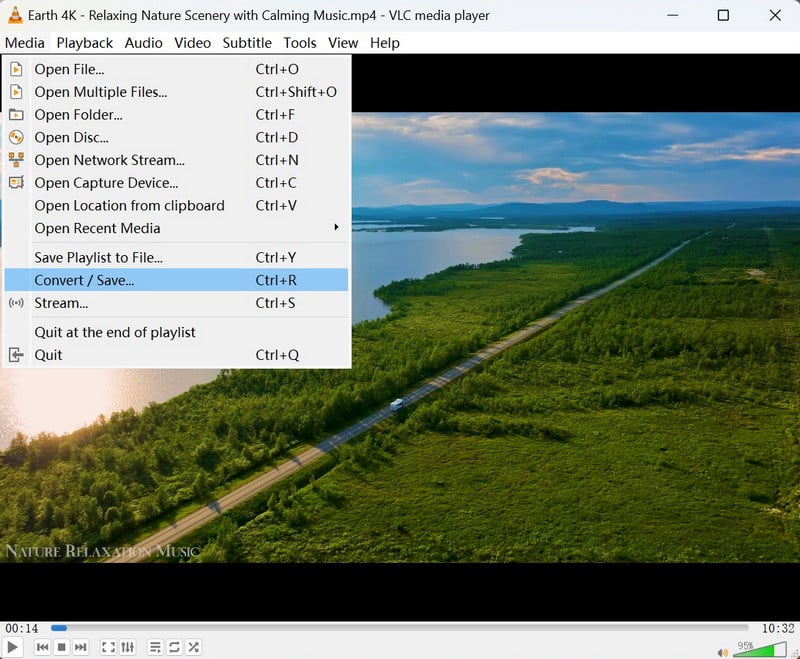
VLC Media Player isn't a dedicated video compressor, but its built-in 'Convert/Save' feature makes it suitable for reducing video size and converting formats. It's a practical choice for users who already have VLC installed and only need occasional compression.
Our Testing Experience:
During our tests, VLC successfully compressed large videos, although the 8K WEBM sample became larger after conversion to MP4. Better results require manual adjustment of bitrate and resolution.
- Best For: Users who already have VLC installed and need to quickly perform simple file size reduction.
✔️ Basic compression controls available
✔️ Support MP4, MKV, AVI, and many video formats
|
|
❌ Compression features are not the main focus
❌ The video may lose color after conversion
|
|
2.4. CapCut - Resize Video File via Export Settings
Why We Recommend It After editing the video, you can shrink the video file size before sharing on platforms like TikTok, YouTube, and Instagram.
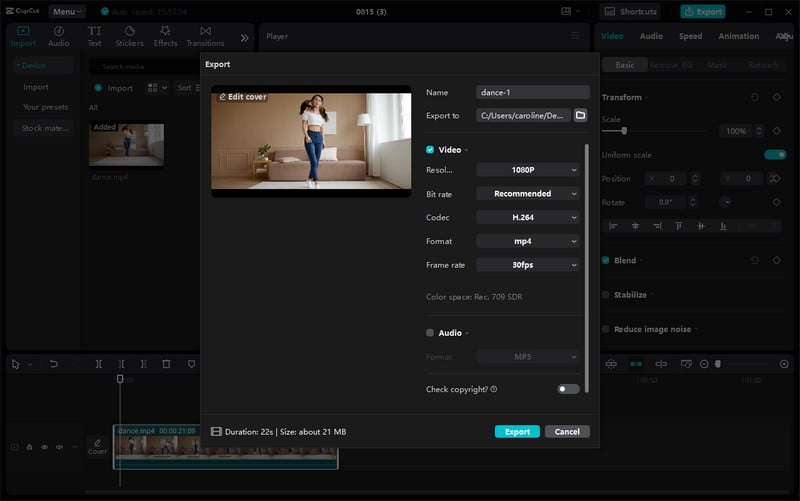
CapCut is not designed as a dedicated video compression tool. It lets users reduce video file size mainly through export settings after editing. Its biggest advantage is combining video editing, effects, filters, and basic compression features in one application.
For creators making content for TikTok, YouTube Shorts, Instagram Reels, and other social platforms, CapCut provides a convenient way to edit videos and export smaller files that are ready for sharing. However, because its main focus is video creation rather than compression optimization, it offers fewer options for users who need precise control over codecs, bitrate, and encoding settings.
Our Testing Experience:
We exported all three videos as MP4 (H.264), 1080p, 30 FPS with a lower bitrate. CapCut provided reliable file size estimates before export, and despite the reduced resolution, the compressed videos maintained good visual quality while significantly reducing file size.
- Best For: Short video creators, social media users, and people who need to quickly compress content after editing videos.
✔️ Combine video editing and compression workflow
✔️ Available on mobile device
✔️ Output file size reference available
|
|
❌ Export settings may not provide the best compression efficiency
❌ Limited compression control compared with professional tools
|
|
Why We Recommend It Fast video compression with hardware acceleration for 4K and 8K videos.
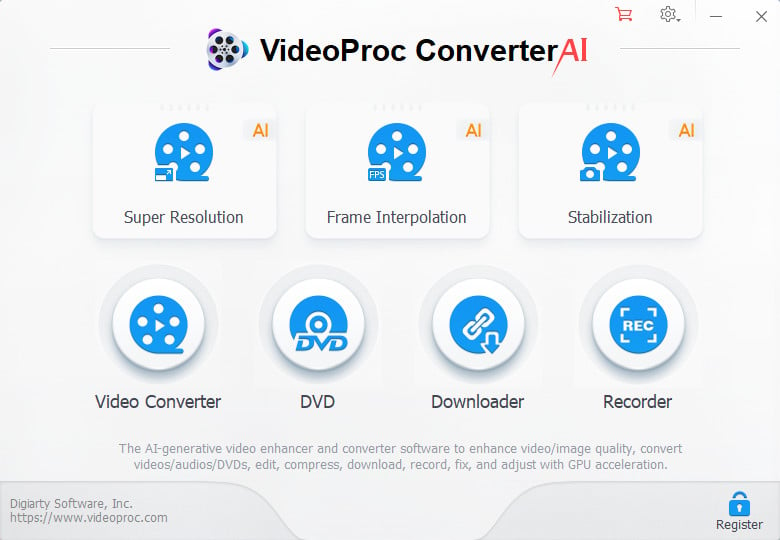
VideoProc Converter AI supports modern codecs including H.264 and H.265 (HEVC), helping reduce video file size while maintaining good image quality. GPU hardware acceleration speeds up encoding, making it a practical choice for compressing large, high-resolution videos.
However, the free version can only compress videos shorter than 5 minutes.
Our Testing Experience:
We compressed all three test videos as MP4 1080P, H264 encoded videos, using the default settings. The 4K iPhone video achieved the highest compression ratio, shrinking from 94.4MB to just 1.08MB. However, the estimated output size (36.67MB) differed significantly from the final result, suggesting that VideoProc's size predictions may not always reflect the actual compressed file.
- Best For: Users who need fast compression for 4K and 8K videos and have devices that support GPU hardware acceleration.
✔️ Fast compressing with GPU hardware acceleration
✔️ Excellent support for 4K and 8K videos
|
|
❌ Resource usage can increase during high-resolution processing
❌ The free version has a video length limit
|
|
2.6. Winxvideo AI - Video Compressor for Batch Processing
Why We Recommend It Batch compress multiple videos with a simple and beginner-friendly workflow.
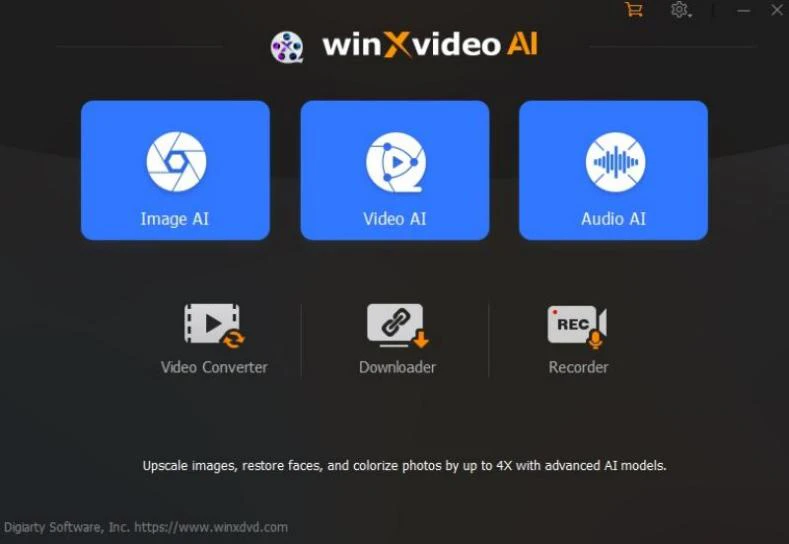
Winxvideo AI makes batch video compression straightforward. Simply add multiple videos, choose an output format and compression level, and start compressing. It also lets you trim videos before compression and preview the estimated output file size. While it offers fewer encoding controls than professional tools, its streamlined workflow is ideal for users who want to reduce video size quickly.
 What Else can Winxvideo AI Do? >>
Our Testing Experience:
We compressed all three test videos at a 60% compression ratio and exported them as MP4 (H.264) using the same settings as Any Video Converter. Winxvideo AI produced good results, but Any Video Converter achieved faster compression, smaller output files, and better overall image quality.
- Best For: Users who need to batch compress video files to optimize storage space.
✔️ Batch compressing videos support
✔️ User-friendly video compression interface
|
|
❌ Like VideoProc Converter AI, it can only compress videos up to 5 minutes in length
❌ Large 4K/8K files may require longer processing time
|
|
Why We Recommend It A fast and convenient way to compress videos online without installing desktop software.
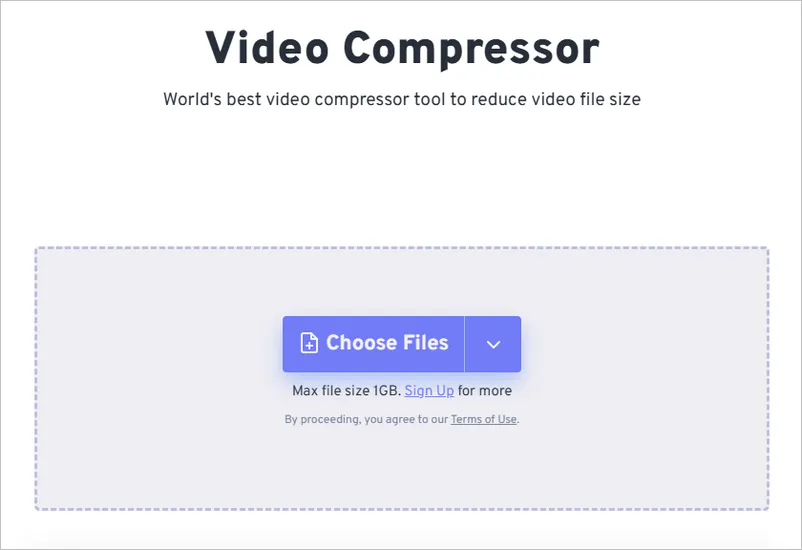
FreeConvert Video Compressor is a web-based video compression tool that allows users to upload videos directly through a browser and reduce file size. It offers options for compression percentage, output format, and video codec.
Our Testing Experience:
We compressed all three test videos to a 60% compression ratio and exported them as MP4 (H.264). Compared with Winxvideo AI using the same settings, FreeConvert required more processing time and produced slightly larger files. However, the output quality remained good, with no noticeable loss in visual clarity.
- Best For: Users who want to batch compress videos online without installing software.
✔️ Convenient for quick compression tasks
✔️ No installation required and works on mobile device
✔️ Online batch compression
|
|
❌ Upload and download time depends on internet speed
❌ 1GB video file size limit
❌ Require downloading the compressed file after processing
|
|
2.8. OnlineConverter.com - Used for Short Video Compression
Why We Recommend It A simple online tool to quickly compress small video files for temporary sharing or storage needs.
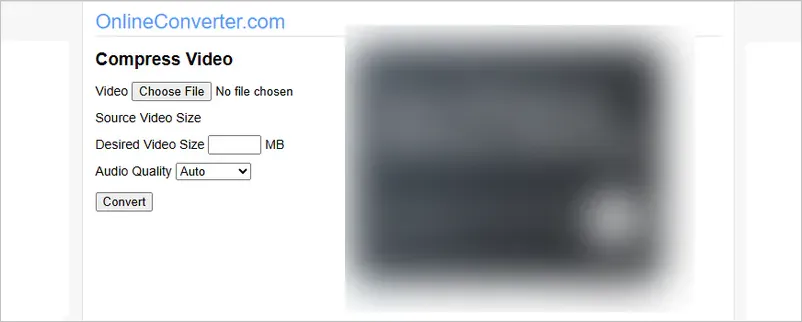
OnlineConverter.com does not provide advanced encoding controls or professional compression settings. Instead, you only need to enter the desired output file size, and the tool will compresses the video based on that target. However, it cannot handle video files larger than 200MB.
Our Testing Experience:
We entered the same target file sizes used in the FreeConvert test (11.8MB and 54.1MB). Since files over 200MB aren't supported, the 4K sample was excluded. The final outputs were reduced to 8.65MB and 36.1MB, showing that the tool is for basic video compression.
- Best For: Occasionally compress small video files.
✔️ Easy quick one-time compression
✔️ The compressed video has no watermark
✔️ The compressed video will not have pixelation
|
|
❌ Limited compression customization
❌ Not suitable for 4K/8K video files
❌ No batch compression support
❌ Slow compressing speed
❌ 200 MB video file size limit
|
|
2.9. VEED - Online Video Editor and Compressor
Why We Recommend It Online video editing, such as adding effects, subtitles, and compressing videos.
VEED reduces video file size by allowing users to adjust compression quality, resolution, and output settings. As an online video editor, it combines video compression with content creation features, making it convenient for users preparing videos for platforms such as YouTube, Instagram, Facebook, and TikTok.
Our Testing Experience:
We kept the original resolution unchanged, set all videos to medium quality, and left advanced settings at default to ensure a fair comparison. Although the tool provided estimated file sizes, the actual compressed files were much smaller, making the estimates less reliable and of little reference value.
- Best For: Compress videos, edit content, and publish them to YouTube, TikTok, and Instagram online.
✔️ Great for social media content creation
✔️ Watermark-free output
✔️ No file size limit
|
|
❌ No batch compression
❌ Registration required
|
|
2.10. Clideo - One-click Compression
Why We Recommend It Compress videos with one click. No complicated settings required.
Clideo's one-click compression process means you don't need to understand professional settings such as encoders, bitrates, or resolutions. Simply upload your video and start the compression mode (basic, strong, superb) to get smaller video files.
Our Testing Experience:
It took over an hour to process my 8K short video; it is only suitable for processing SD video files.
- Best For: Beginners who are unfamiliar with complex video parameters.
✔️ Automatic compression optimization
✔️ Extremely beginner-friendly
|
|
❌ 500MB video file size limit
❌ Not suitable for professional compression workflows
|
|
Part 3: Tips for Compressing Videos Effectively
Choosing the right video compressor is only the first step. To achieve a smaller file size while maintaining good video quality, you also need to understand how different compression settings affect the final result. Here are some practical tips to help you compress videos more effectively.
1. MP4 with H.264 is usually the safest choice. If you want to save more storage space, consider using H.265 encoding.
2. Keep the original resolution when quality is important, but reduce it when the video will only be viewed on smaller screens or shared online.
3. Adjust video bitrate properly or remove unnecessary parts before compression.
In most cases, reducing the file size by 50%–80% while maintaining acceptable visual quality is considered a good balance between storage efficiency and video quality. Here, we present the steps to obtain high-quality compressed video using Any Video Converter.
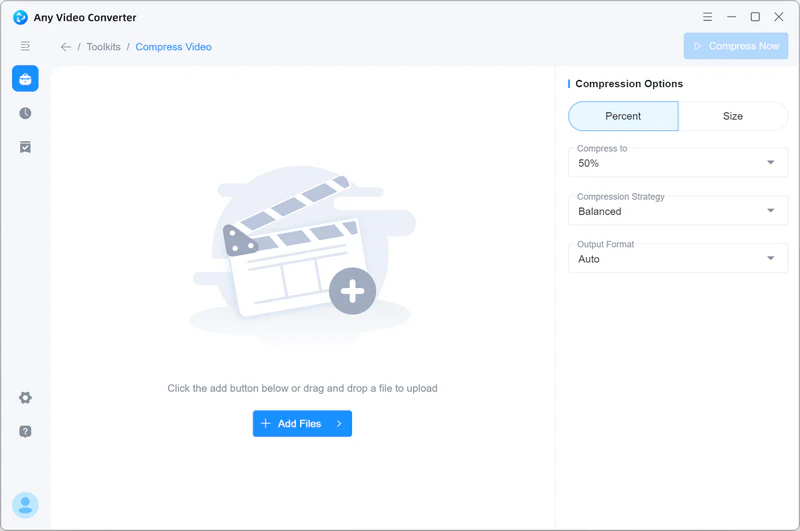
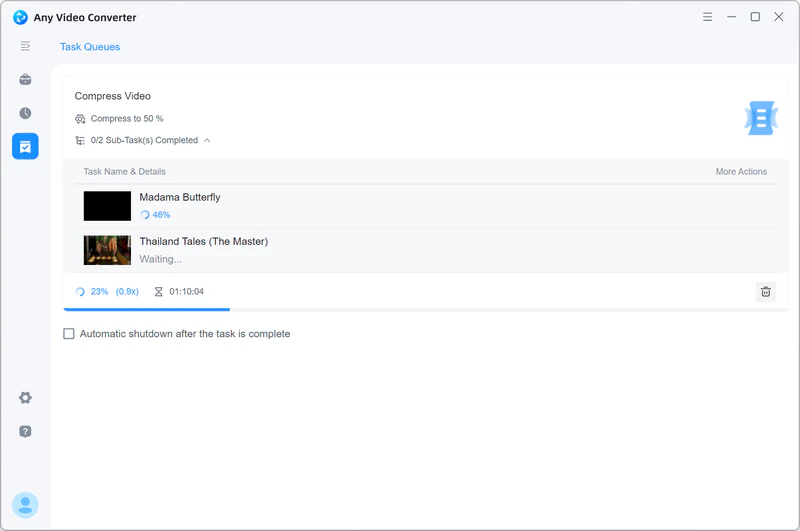
Step 1 Open 'Compress Video' in Any Video Converter.
Step 2 Upload one or more files you want to compress. Large files (1+GB) and common video formats are supported.
Step 3 You can select the compression ratio or size in the right panel. Most importantly, choose a compression strategy (Balanced, Keep FPS, Keep Resolution, or Quality First) to help you achieve satisfactory compression results.
Step 4 Select an output format (MP4 H264, MP4 H265, or MP4 AV1) to compress your video for free.
Part 4: FAQs about Free Video Compression Software
How to use HandBrake software to compress video?
HandBrake offers advanced settings, making it better suited for users familiar with video encoding parameters; here are the steps.
Step 1: After installing HandBrake, launch the software and click 'Open Source' to import your video file.
Step 2: Select a suitable output preset from the Preset menu, such as Fast 1080p30.
Step 3: Select MP4 as the output format, and adjust the encoder, frame rate, and constant quality on the 'Video' tab.
Step 4: Click 'Start Encode' to begin compressing the video.
What is the best free video compression software?
If you need a comprehensive video compression tool, Any Video Converter is a great choice; it supports video downloading, format conversion, and compression - offering various compression methods - making it suitable for both beginners and content creators.
For professional-grade encoding control, you might choose HandBrake; and if you prefer online compression, tools like FreeConvert or Clideo are good options.
However, desktop software is more secure than online compression tools and offers a wider range of parameter options.
How to compress a video on iphone for free?
There are several ways to compress iPhone videos:
1. Use the CapCut mobile app to lower the video resolution.
Step 1: After installing CapCut on your iPhone, upload a video from your phone.
Step 2: You can click next to the 'Export' button in the top-right corner to adjust the video resolution, frame rate, and bitrate. These settings can help you reduce the video file size..
2. Transfer the video to a computer and use a tool like Any Video Converter to compress it.
3. Use an online video compression tool to upload and compress the video via your browser.
How to reduce the size of a video for email?
Generally speaking, compressing a video to 20 MB or smaller makes it easier to send via email.
The quickest ways to do this are by lowering the resolution or bitrate, or by removing unwanted clips. If the video remains too large, you can upload it to cloud storage and share the link instead of sending it directly as an attachment.
Video Compressor for Email >>
What is the safest way to compress MP4 files?
The safest way is to use reputable and reliable video compression software (such as Any Video Converter, CapCut, Handbrake, or VLC) while keeping a backup of the original video. A backup effectively prevents issues with abnormal audio in the compressed video.
Is H.265 better than H.264 for MP4 compression?
H.265 offers higher compression efficiency than H.264, meaning it can achieve a smaller file size while maintaining comparable quality.
However, H.264 has better compatibility, being supported by virtually all devices, media players, and social media platforms.
Final Thoughts
The best free video compression software is not always the one that creates the smallest file size. A good video compressor should balance file size reduction, video quality, processing speed, and ease of use. Based on our testing, each tool has its own advantages. Some are better for advanced encoding control, while others are more suitable for quick online compression or social media sharing.
For users who need an all-in-one solution, Any Video Converter provides a complete workflow for downloading, converting, and compressing videos. Its flexible compression strategies make it easy to reduce video file size while maintaining the desired video quality. Choosing the right tool based on your needs can help you save storage space and create videos that are easier to share.

Besty Smith | Content Writer
Besty Smith is a talented and insightful content creator with a keen interest and
passion for software programs. She focuses on in-depth research and hands-on experience with various
types of software, providing readers with in-depth and inspiring content through precise writing. With
her keen insight into the software industry, Besty is committed to helping readers keep abreast of the
latest industry trends so that they can stay competitive in the digital age.